How do I edit a product demo video after it is recorded?
Change a recorded demo's narration, callouts, chapters and look in tday.com's editor, then render a new cut. The share link and every embed stay the same.
By the tday.com team Published 6 min read
The short answer
Open the demo in the tday.com editor from the Demos page. There you can change the narration, the timeline and the style, then render a new cut. To fix one narrated line, click it on the voice row, change the words and choose Regenerate this line. The demo's share link and embeds stay the same and play the newest finished take.
Key takeaways
- Every demo opens in the tday.com editor, where you change the narration, the timeline and the style, then render a new cut.
- Rows above the video on the timeline hold overlays, highlights, chapters and step notes. Each opens its own panel.
- To change what the voice says, click a line on the voice row, edit it and choose Regenerate this line. Only that line is voiced again.
- Under Look, Quality can move a demo your agent recorded to 1080p without recording it again.
- Each new cut you publish or export is one of your plan's monthly new versions. Voiced lines spend credits, 10 a minute.
- Edit when the words or the style changed. Have your agent record it again when the screens changed.
A recorded demo is not finished the moment it is uploaded. A line can say too much. A callout can point at the wrong thing. The brand colours may change next month. None of that needs a new recording.
In tday.com, every demo opens in the editor, from the Demos page. There you can change the narration, the timeline and the style, and render a new cut. The demo's share link and embeds do not change.
Open the demo in the editor
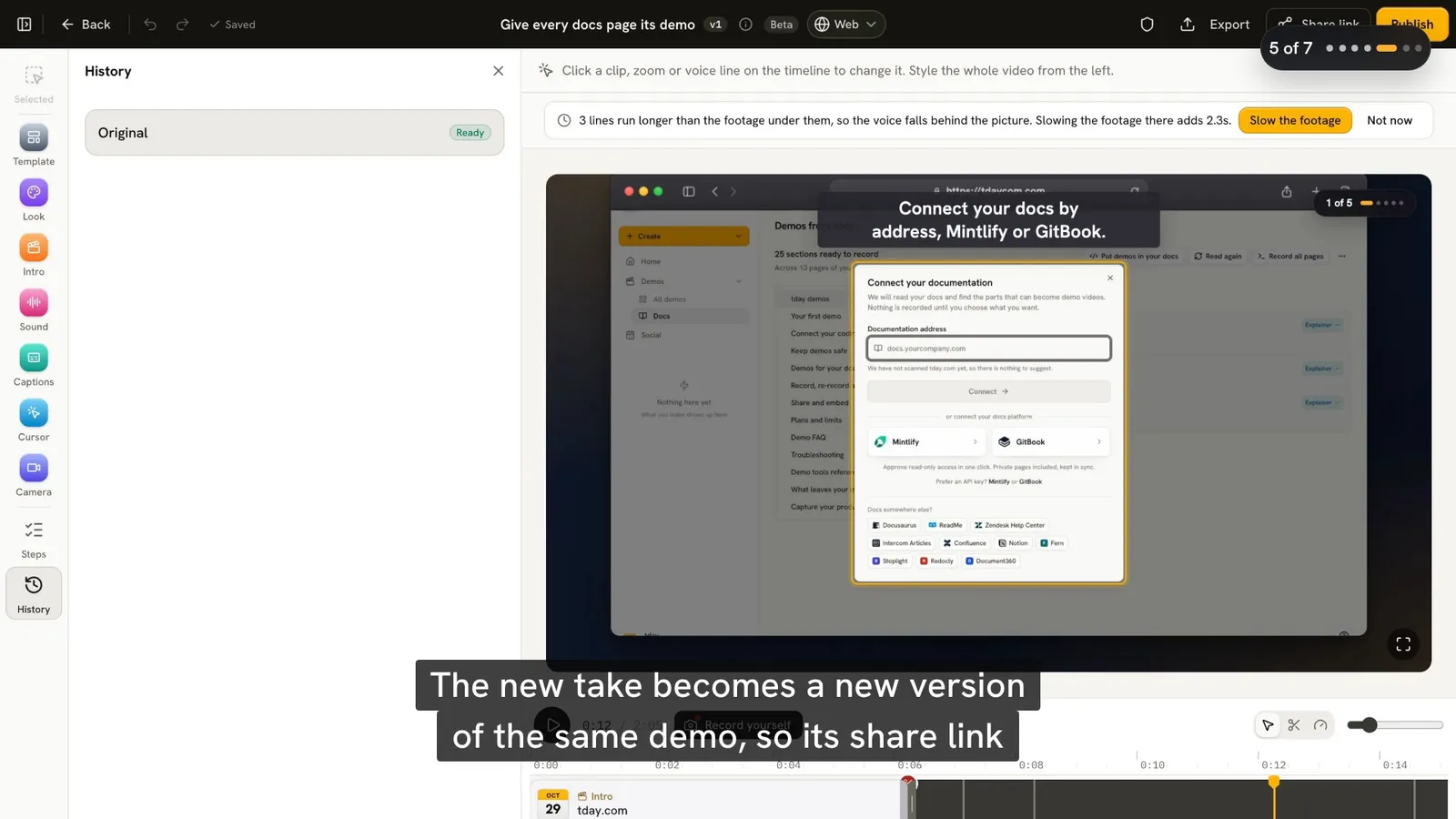
Go to the Demos page and open the demo. The editor shows the video with a timeline under it.
What you can change falls into three groups:
- The narration: what each line says.
- The timeline: what shows on screen and when, such as callouts, highlights and chapters.
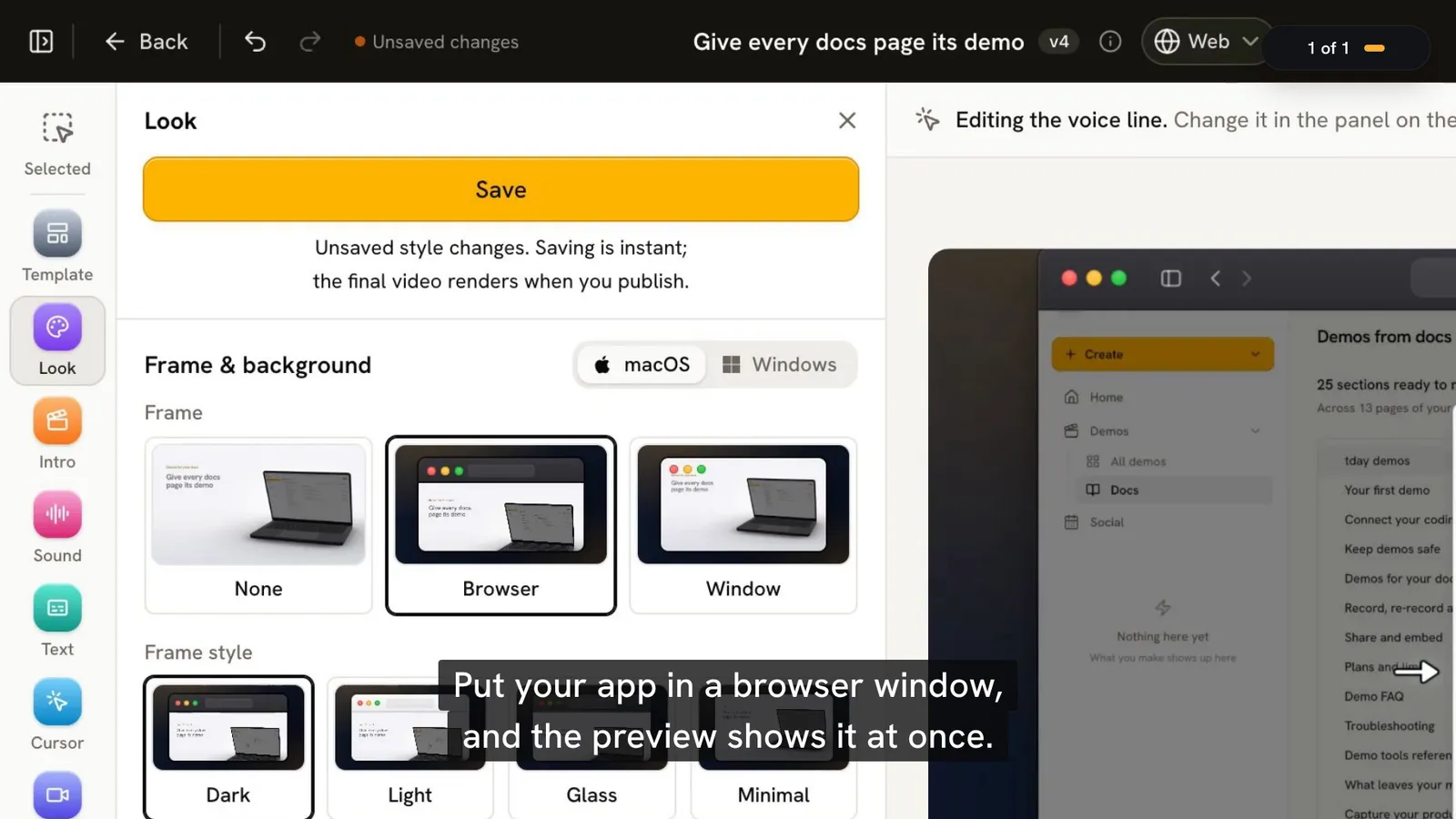
- The style: how the video looks, set under panels such as Look.
When you are done, you render a new cut. It is a new version of the same demo, so you never paste a new link anywhere.
Every plan edits with the same editor, captions, highlights, music library, intro and end cards and camera bubble. Using your own music is on Pro and above.
Change overlays, highlights, chapters and step notes
Above the video on the timeline, each row opens its own panel. You can move what a row holds right on the video.
| Row | What it holds |
|---|---|
| Overlays | Callouts and key caps |
| Highlights | What each narrated line points at on screen |
| Chapters | Each chapter's title and the step it starts on |
| Step notes | A short note for each step, shown as a card, callout or bar |
A few things to know:
- Callouts take their words in place. Type a callout's text in the callout itself, on the video.
- Highlights follow the narration. Each one is what a narrated line points at on screen.
- Chapters set the step they start on. Rename a chapter, or move where it begins, without touching the recording.
- Step notes have three shapes. Pick a card, a callout or a bar for each step's note.
None of these needs a new take. You change them, then render a new cut.
Change one narrated line and regenerate it
The most common fix is a single sentence. A feature got renamed, or a line runs long.
Click the line on the voice row. Change what it says. Then choose Regenerate this line to voice it again.
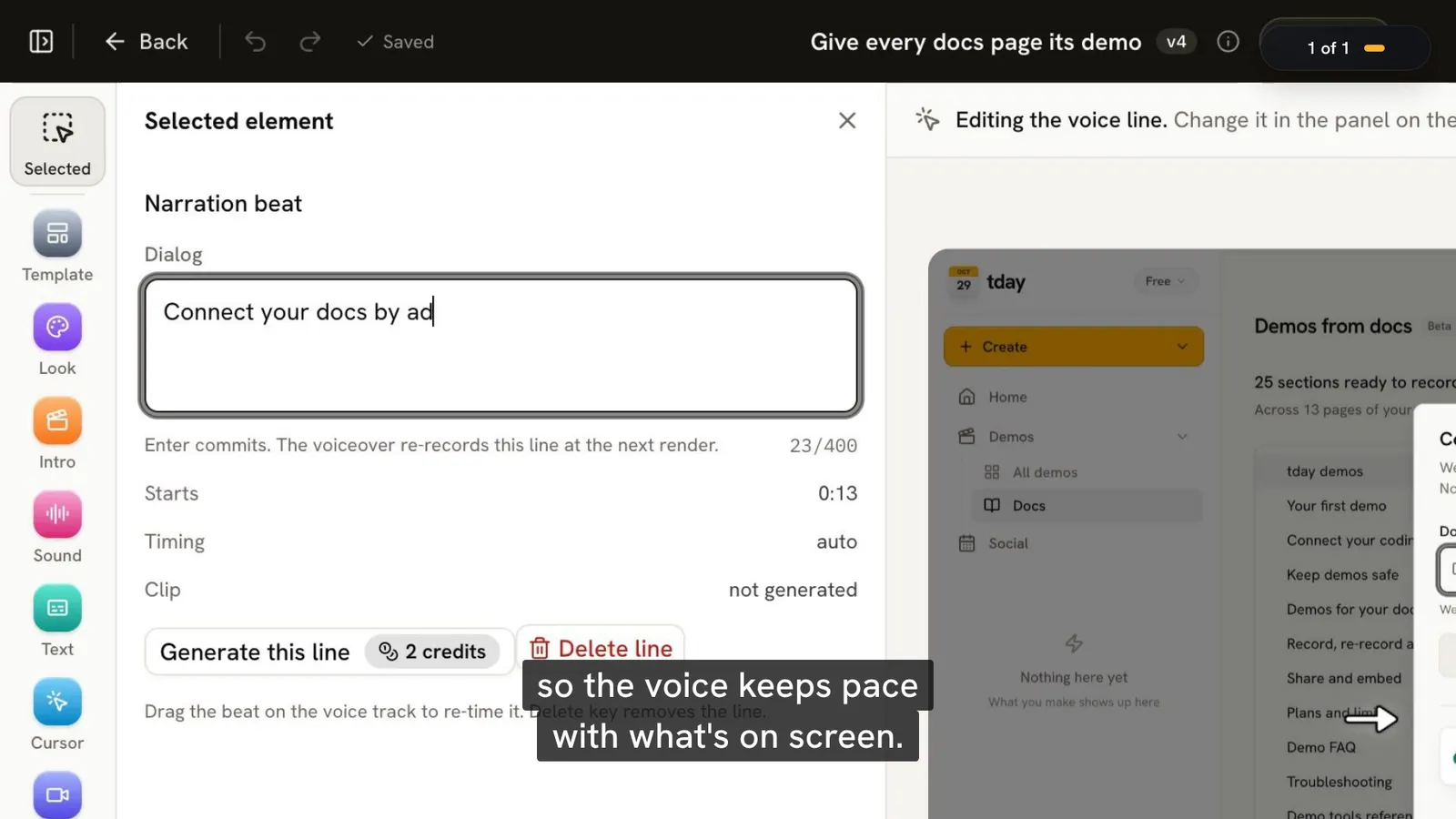
Only that line is voiced again. The rest of the narration stays as it was. Regenerate this line makes no new version on its own, but the line it voices does spend credits (see below).
If you never want to record your own voice at all, the voiceover guide explains how the narration is written and voiced in the first place.
Change the look without recording again
The style is the third thing you can change in the editor. Change it, and you render a new cut from the same take.
Quality sits under Look too. It can move a demo your agent recorded to 1080p without recording it again.
If you find yourself making the same style changes on every demo, set them once. Demo defaults, on the Demos page, sets how every new demo looks and sounds.
Versions, credits and the link that stays
Each time tday.com makes a demo's video, that is one new version. That covers:
- the first video after your agent uploads a new demo;
- a re-record, which becomes a new version of the same demo;
- a new cut from the editor, after you change the narration, timeline or style.
Each new cut you publish or export is one of your plan's monthly new versions. Each plan includes twice as many new versions a month as saved demos. A version that fails does not count.
Voice is billed apart from versions. Every line tday.com voices spends credits, 10 a minute, by the second. That is true on the first render, on a new cut, and with Regenerate this line. Recording and rendering use no credits. With no credits left, a demo your agent uploads is still made without its voice. It shows short step notes instead, and Generate voiceover in the editor voices it later.
The share link points at the demo, not at one version of it. While a new version renders, or if it fails, the link and every embed keep playing the newest finished take. Once the new one is ready, they play it.
When to re-record instead
The editor changes the narration, the timeline and the style. A demo recorded on your machine is recorded again by your agent, not from the editor.
So the rule is simple:
- Edit when the words, the callouts, the chapters or the style changed.
- Re-record when the screens changed: a moved menu, a new step, a renamed button that shows on screen.
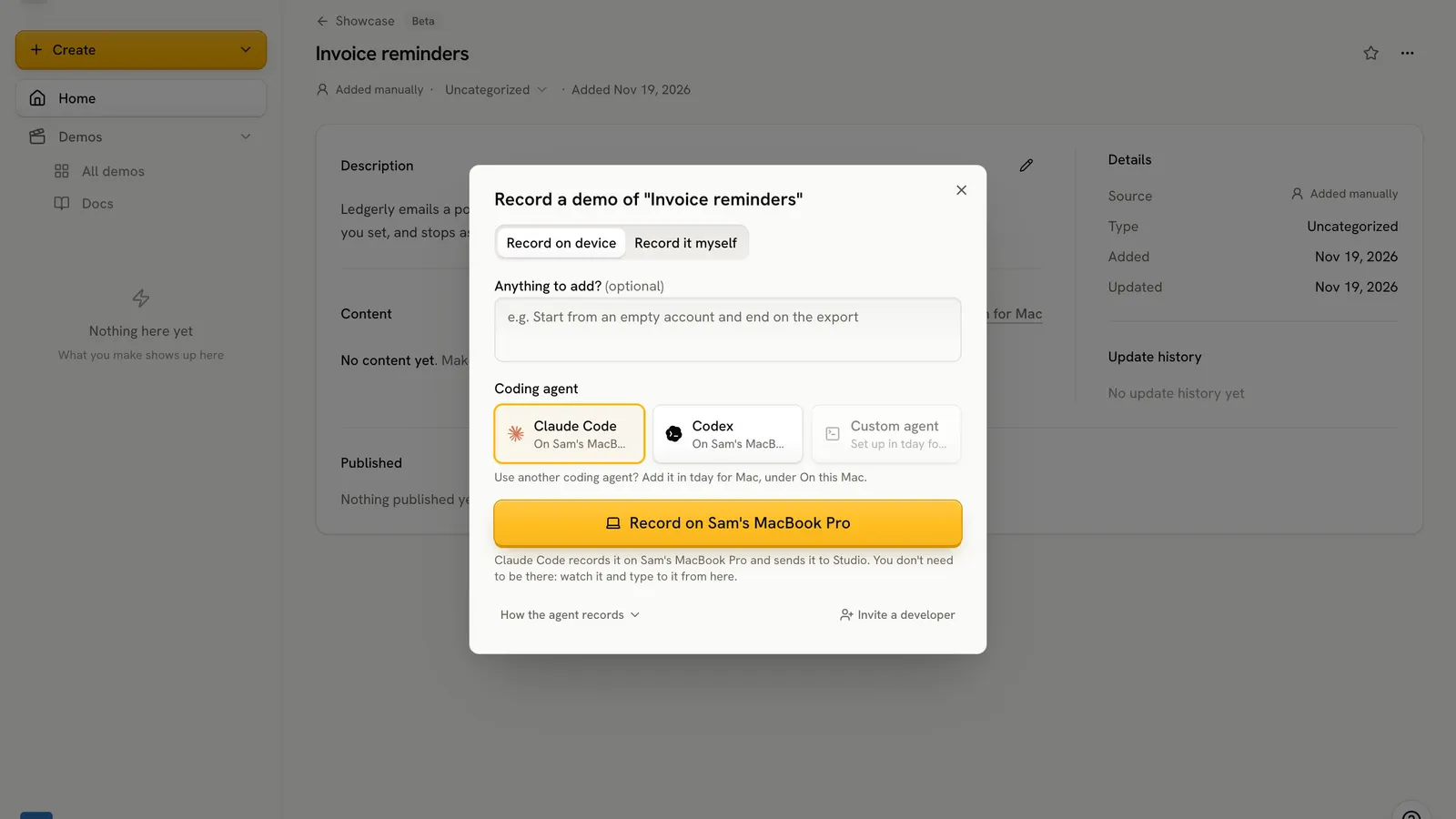
To re-record, ask your agent to record the demo again. A take recorded with the demo's projectId becomes a new version of the same demo. Its title, share link and embeds stay, and they play the new take once it is ready. It also keeps every feature and docs section the demo is linked to.
Two cases wait. A re-record made from a prompt's capture token waits for someone on your team to open the demo and choose Publish this take. And while a demo is still rendering its last take, it takes no new one until that finishes.
If your demos go out of date with every release, the guide to keeping demos up to date covers how to find the ones a change broke and re-record them in turn.
Frequently asked questions
Can I change a product demo's narration without recording it again?
Yes. In the tday.com editor, click a line on the voice row, change what it says and choose Regenerate this line. Only that line is voiced again. Voicing it spends credits, 10 a minute, by the second, and it makes no new version.
Does editing a demo change its share link or embeds?
No. The share link and embeds point at the demo, not at one version. They keep playing the newest finished take, and play the new cut once it is ready.
Does a new cut from the editor count against my plan?
Each new cut you publish or export is one of your plan's monthly new versions. Each plan includes twice as many new versions a month as saved demos, and a version that fails does not count.
Can I make a recorded demo 1080p after it is recorded?
Yes, for a demo your agent recorded. Under Look in the editor, Quality can move it to 1080p without recording it again.
When should I re-record a demo instead of editing it?
When the screens changed. The editor changes the narration, timeline and style. A demo recorded on your machine is recorded again by your agent, and the new take becomes a new version of the same demo.
Sources
- Record, re-record and edit, tday.com docs
- Plans and limits, tday.com docs
- Share and embed, tday.com docs
Have your coding agent record your first demo
One prompt in Claude Code, Cursor or Codex records a narrated demo of your app. tday.com voices, styles and renders it, ready for your docs. Free includes 5 saved demos.